
How to Automate Allegro Order Shipping in Kiero OMS
Want to save time on packing and shipping? Read our step-by-step guide to fully automate label generation and printing from Allegro using Kiero OMS.
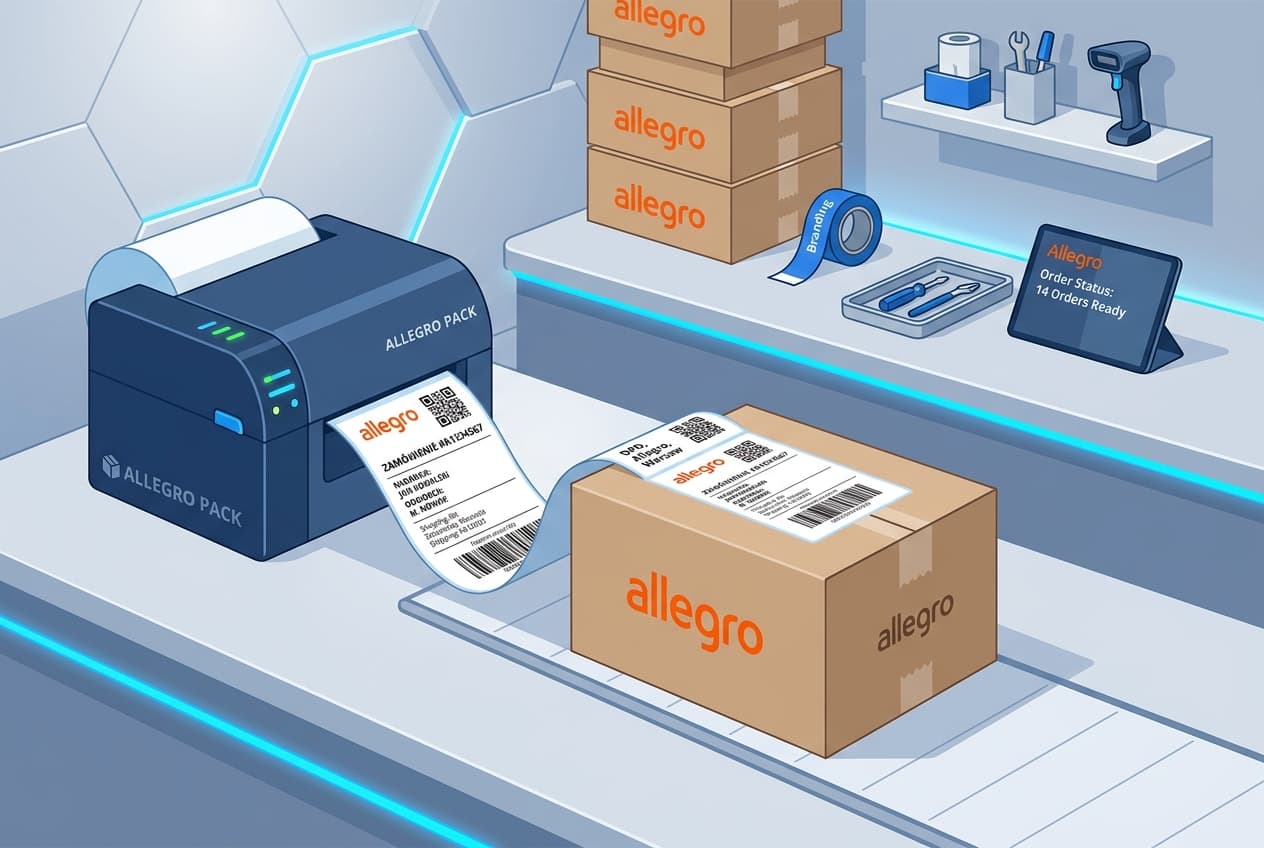
How to Automate Allegro Order Shipping in Kiero OMS
Fast order fulfillment and instant tracking updates are key to building high seller ratings on Allegro. Manually downloading labels, copying address details, and copy-pasting tracking numbers takes up a lot of time and leads to errors.
In this guide, you will learn how to fully automate shipping for Allegro orders using Kiero OMS and our dedicated desktop utility, Kiero Print Agent.
Step 1: Connecting your Allegro Account via API
The first step is linking your Allegro account with the Kiero OMS panel. The integration is based on the official, secure Allegro REST API.
- Log in to the Kiero OMS panel and go to Integrations -> Allegro.
- Click Add Account and approve the permissions in the popup window.
- Once authorized, the system will automatically import your active orders, offers, and sync payment statuses.
Step 2: Configuring Wysyłam z Allegro Package Templates
The Wysyłam z Allegro (WzA) service allows shipping packages through carriers integrated directly with Allegro (e.g., Allegro Paczkomaty InPost, Allegro One, DPD).
To automate this in Kiero OMS:
- Go to Integrations -> Allegro and click the Configure (Konfiguruj) button next to the desired Allegro account.
- In the configuration modal, switch to the Shipping (Wysyłka) tab.
- In the Label format (Format etykiet) section, select your preferred format (e.g., PDF (A6) - Termiczne).
- Fill in the Sender details (Dane nadawcy) section (name, address, email, and phone number) that will appear on the shipping labels.
- In the Quick package templates (Szybkie szablony paczek) section, click + Add template (+ Dodaj szablon) to define default parameters (dimensions, weight) for streamlined label generation.
Step 3: Print Automation with Kiero Print Agent
The core of shipping automation is eliminating the manual download of label PDFs. This is handled by our native desktop utility.
- Download and install Kiero Print Agent for your operating system (available for Windows and macOS Intel / Apple Silicon).
- Launch the application and log in using your Kiero OMS credentials.
- Select your connected thermal printer (e.g., Zebra) and configure the label size (e.g., 100x150 mm).
- In the settings, enable Auto-print after shipment generation.
Now, when you click "Generate Shipment" in the Kiero OMS order list, the label will automatically print at your warehouse in a split second — without opening a browser or downloading PDFs.
Step 4: Automatic Tracking Sync with Allegro
Once the shipment is successfully generated in Kiero OMS:
- The system automatically retrieves the tracking number from the carrier.
- The tracking number is immediately pushed to Allegro via API.
- Allegro automatically notifies the buyer, and the order status in Kiero OMS updates to "Shipped".
This eliminates delays in dispatch reporting, directly improving your sales quality rating in the Allegro seller dashboard (Quality Matrix).