
Automations: practical scenarios
User-configured automation in Kiero OMS combines a trigger, optional conditions, and one or more actions. The examples below come from real workflows supported by Kiero OMS and are anonymized: no company, account, or buyer data is included.
What is a system automation?
Not every automatic process is a rule that users create. After a shipment is created, Kiero OMS stores the tracking number and sends it to the relevant sales channel, such as Allegro, according to the integration configuration. This is built-in integration synchronization; customers should not create a separate automation for it.
How to design a user rule
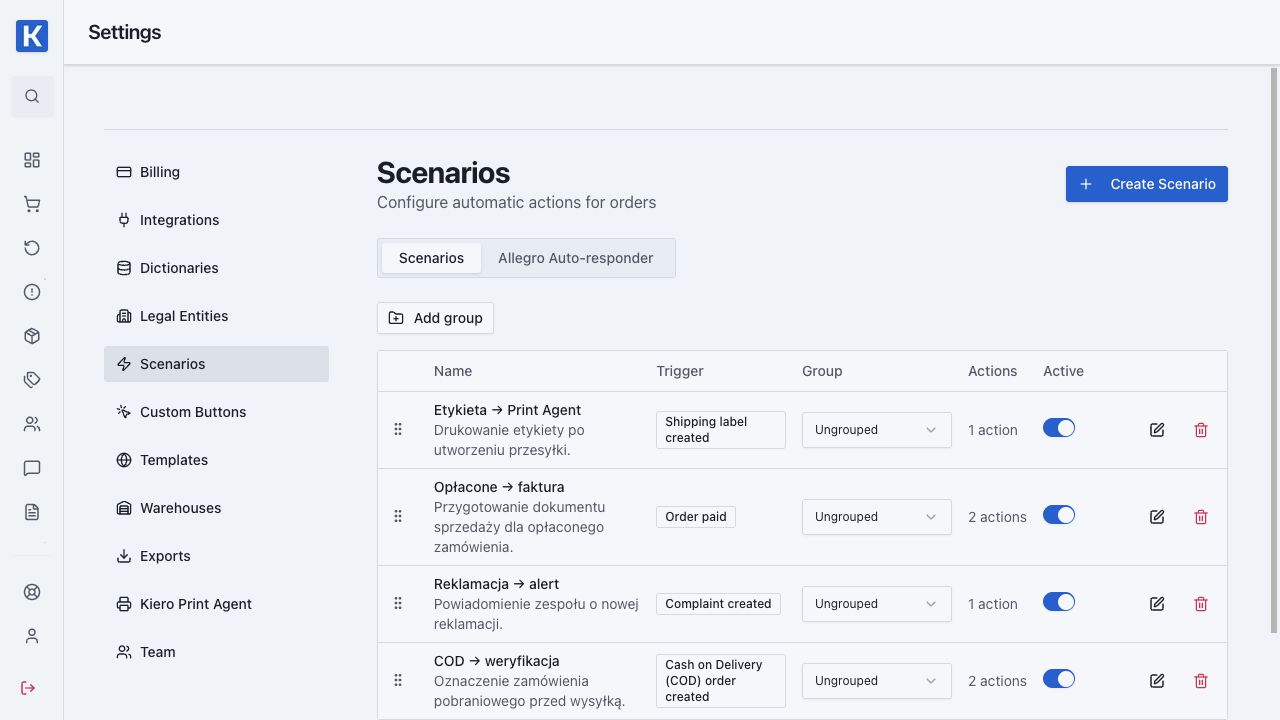
First choose the moment when something happens, then narrow the order set with conditions, and finally add the smallest required action. Example: label created → print document through Print Agent. Tracking delivery to Allegro remains a system process.
Examples from Kiero OMS workflows
1. Label created → automatic printing
Trigger: shipping_label_created
Actions: print_document for the label and, optionally, a status change.
After a label is generated, the job is sent to Print Agent on the warehouse computer. The team does not download a PDF or select a printer for every order. Test one carrier, one format, and one printer before enabling the rule.
2. Order paid → sales document
Trigger: order_paid or order_status_changed
Actions: generate_invoice or generate_paragon, followed by send_marketplace_invoice or email delivery.
This scenario is used with Fakturownia or Scanye. First test document generation on one order, then add PDF delivery to Allegro after checking the result.
3. New discussion or message → team alert
Trigger: message_received or complaint_created
Actions: send_telegram or send_slack, optionally followed by task creation.
The assigned person receives an alert without repeatedly refreshing Allegro. Include the order number and response deadline in the alert; avoid copying the buyer's full personal data.
Customer workflow examples
COD handling without mistakes
A store adds a condition for COD, applies a COD-review tag, and alerts the team. The warehouse does not treat a cash-on-delivery order as prepaid, and the team can filter these orders before printing labels.
Priority orders without a separate spreadsheet
The team uses order star colors for urgent orders or orders waiting for stock. An automation can react to order_star_color_changed and create a task or send a notification. One order list replaces a separate tracking sheet.
A return that needs a decision
When a return is created or changes status (return_created, return_status_changed), the system can create a task for the responsible person and send an alert. Issue a refund only after checking the decision and item condition.
How to roll out safely
- Name the rule as event → result, for example, Label → Print Agent.
- Start with one action and one test order.
- Add a source, status, or delivery-method condition when the rule should not apply to every order.
- Check the execution history and the external result, such as an invoice number or tracking number.
- Add another action only after the first one is confirmed.
Do not create two rules that produce the same result. This is the most common cause of duplicate messages, documents, or print jobs.
The complete automation map
Kiero OMS has two automation layers:
- System processes run in the background when marketplace or carrier data changes.
- User scenarios combine a trigger, conditions, and actions configured in Settings → Automations.
What is handled by the system?
- After a shipment is created, the tracking number is stored and sent to the relevant sales channel, such as Allegro.
- The system detects InPost from the delivery method, Paczkomat name, or pickup point. The order card then shows Gab. A, Gab. B, and Gab. C quick buttons.
- The size buttons start label generation without completing the full form manually. Saved Allegro dimension and weight presets can appear for other carrier methods.
- Shipment statuses, waybills, and delivery data return to the order and can trigger further scenarios.
Do not create a “send tracking to Allegro” rule or a separate rule for the Gab. A/B/C buttons. These are system features. A user automation can start printing, tagging, document generation, or notifications after a label is created.
Available triggers
Orders and payments: order created, status changed, paid, shipping method changed, COD created/delivered/paid, note added, invoice or correction generated, and order star color changed.
Returns and complaints: return created, status/reason/source changed, decision made, return waybill added, time spent in a status, note added, and complaint created.
Products and listings: stock, category, location, tag, or star color changed; listing status changed; and listing category or tag matched.
Manual launch: a Custom Button clicked on an order, return, or complaint.
Available actions
Change status or payment status, generate a label, print through Print Agent, generate an invoice or receipt, send a document to Allegro, send email/SMS/messages, notify Telegram/Slack, call a webhook, add a tag, create a task, change a star color, update product price or stock, and change a return status.
Examples of automations used by our customers
Paid order → invoice and Allegro document
Use order_paid, limit the rule to Allegro, and run generate_invoice → send_marketplace_invoice. Test one document before enabling the rule for every order.
Label → print without downloading a PDF
Use shipping_label_created, add a carrier condition, and run print_document. Print Agent receives the job on the warehouse computer. Tracking delivery to Allegro remains a system process.
COD → pre-shipment check
Use cod_order_created, add the COD-review tag, create a warehouse task, and notify the team. The order can then be filtered before labels are printed.
Complaint → alert and task
Use complaint_created, send a Telegram alert, and create a task. The alert only needs the case number and response deadline; buyer details remain inside OMS.
More examples of automations used by our customers
These examples show practical ways our customers use Kiero OMS. Names are deliberately short so they fit on warehouse buttons.
InPost B → quick label
The worker clicks InPost B on an order. A custom_button_clicked scenario generates an A6 InPost label. The button contains no business logic; the automation does, so the workflow can be changed without redesigning the order screen.
To pack → tag and packing slip
One click adds the To pack tag and prints a packing slip. The team can filter by the tag while Print Agent handles the document.
Escalate complaint → Telegram and task
A button on the complaint card sends a Telegram notification and creates a task for the responsible person. The decision stays with the team, but it cannot disappear in the message queue.
Check return → warehouse review
A return button adds a review tag and creates a task to check the returned item. A refund is not triggered until a worker makes the decision.
Custom Buttons: setup
- Open Settings → Custom Buttons.
- Enter a short name, choose the target (order, return, or complaint), and select a color.
- In Settings → Automations, create a scenario with Custom Button clicked.
- Select the button and add conditions and actions.
- Test one record and review the execution history.
A Custom Button can launch the same actions as a system event: printing, labels, tags, tasks, messages, documents, or webhooks. Use a button for a human decision; do not duplicate system synchronization with it.