
Omnichannel Integrations Module
Kiero OMS was built to fully unify your sales, inventory, and shipping processes. The Integrations Module connects the system with the most popular marketplaces, online store engines, courier services, and accounting software, creating a single, coordinated e-commerce ecosystem.
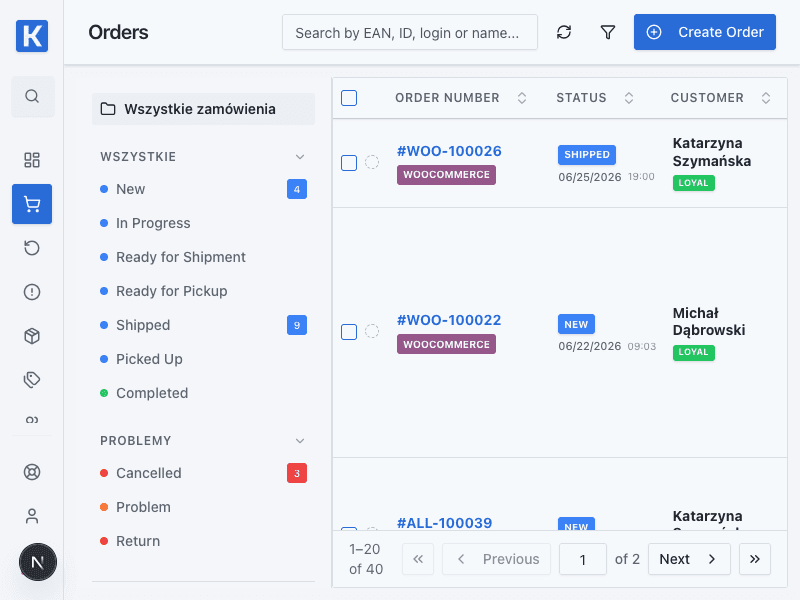
Once a channel is connected correctly, its orders appear in one operational workspace.
1. What's Included in the Module?
- Marketplace Integrations: Two-way API for Allegro (offer management, messages, disputes, refunds) and Etsy (order importing, shipping status updates).
- E-commerce integrations: WooCommerce (WordPress) connects catalogue and order workflows within the configured scope. PrestaShop is planned and must not be treated as an active connector unless it is shown as available in the application.
- Logistics Integrations: Connectors for InPost ShipX (parcel lockers & courier labels), Wysyłam z Allegro, and logistics broker Furgonetka (access to DHL, DPD, FedEx, GLS and other carriers in one account).
- Accounting Integrations: Automated billing via Fakturownia.pl and Scanye (invoice generation, email dispatch, and invoice forwarding to Allegro).
2. What Can You Do as a Merchant?
- Instantly Connect Sales Channels: Link your Allegro accounts or WooCommerce stores using secure OAuth2 protocols or API keys in just a few minutes.
- Map Shipping Methods: Map the delivery methods selected by buyers to specific carrier services in Kiero OMS (e.g., “Allegro Paczkomat InPost” -> “InPost Paczkomat Smart”).
- Manage Listings: Monitor and configure relationships between OMS warehouse products and listings published on marketplaces.
3. What Do You Get? (Business Value and ROI)
- No More Manual Data Entry: Complete elimination of manual copying of customer addresses to courier systems and order values to accounting programs.
- Over-selling Prevention: Automatic stock updates prevent situations where a customer purchases a product that is physically out of stock.
- Stable Connection Status: Utilizing Query String Auth and custom User-Agent headers protects integrations from being blocked by hosting provider security systems (WAF / Imunify360).
4. Automation Capabilities (Automations)
- Two-way Stock Synchronization: When a product is sold on one platform (e.g., Allegro), Kiero OMS immediately updates its inventory count in the warehouse and pushes the updated stock level to WooCommerce and Etsy within seconds.
- Automated Tracking Number Export: Immediately after generating a shipping label via InPost or Furgonetka, the system automatically sends the tracking number and status tracking link back to the marketplace where the purchase was made (e.g., to the buyer's Allegro order card) and marks the order as shipped.
- Automated Token Refresh: The system monitors the expiration dates of OAuth2 tokens (such as for Allegro and Furgonetka) in the background and automatically refreshes them, guaranteeing integration continuity without manual intervention.
First Allegro connection — checklist
Before you start, make sure you have administrator access to the Allegro account. Do not enter your Allegro password in Kiero OMS — OAuth authorization takes place on the provider's website.
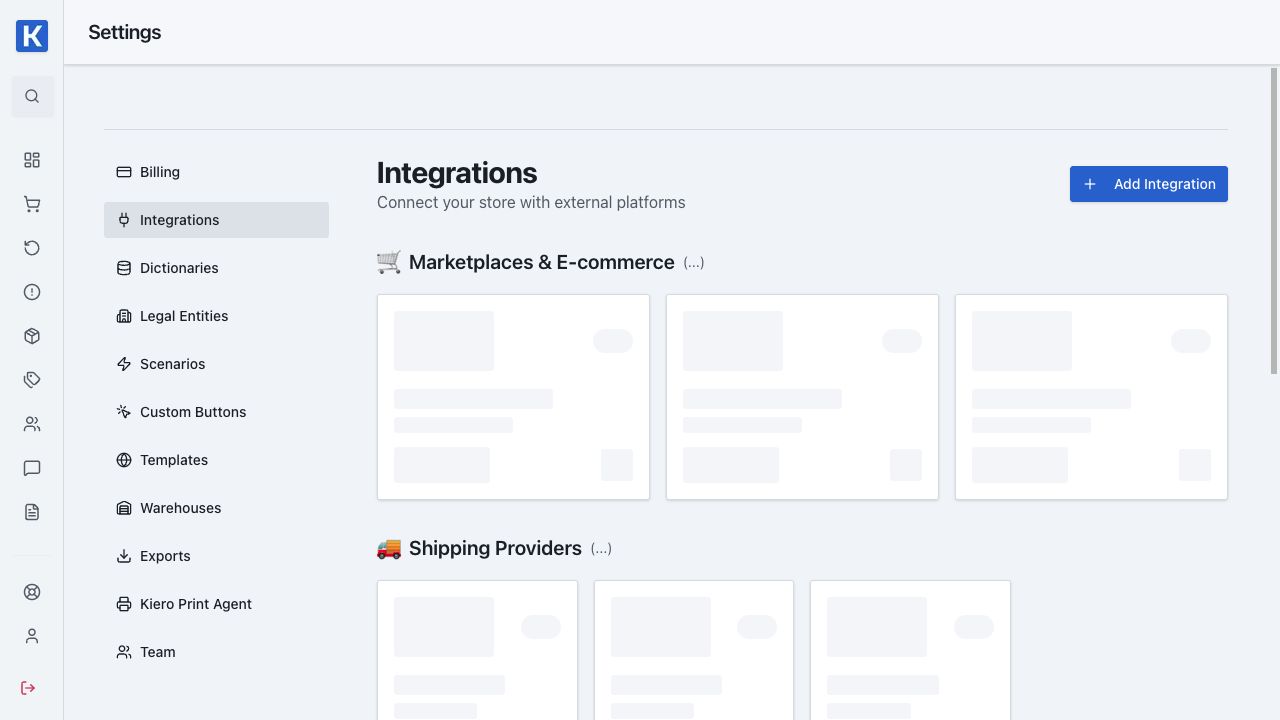
- Open Settings → Integrations.
- Click Add integration and select Allegro.
- Give the connection a recognizable name if you use more than one account.
- Start authorization and approve the requested permissions on Allegro.
- Return to Kiero OMS and confirm that the connection status is active.
- Start the import or wait for the first order and listing synchronization.
Expected result
The active account appears in the integrations list, and imported orders are visible under Orders. To synchronize products and listings, continue with Products and inventory and Offers.
Orders are not appearing
Stripe Sales — complete setup
- In Stripe open Developers → API keys → Create restricted key.
- Select Providing this key to a third-party application, enter
Kiero OMSandhttps://kiero-oms.pl, enable custom permissions, and grant only Read access to the account, Checkout Sessions, Line Items, Products, Prices, and payment data. - Copy
rk_test_...for test mode orrk_live_...for production. Select the same mode in Kiero. - In Kiero OMS open Settings → Integrations → Add integration → Stripe Sales. Enter the
acct_...Account ID and Restricted API Key, then click Show webhook URL. - Copy the complete URL shown by Kiero into Stripe: Developers → Webhooks → Add destination → Your account → Configure destination. Never enter the literal
<routeKey>placeholder. - After creating the destination, open it in Stripe, find Signing secret, click Reveal, and copy
whsec_.... - Return to Kiero, paste
whsec_...into Webhook Secret, and click Save connection.
Never share sk_... keys or webhook secrets in messages or documentation.
Check the integration status, import date range, and order list filters. If the status shows an authorization error, use Refresh connection and try again. Do not delete the integration before saving the displayed error message.